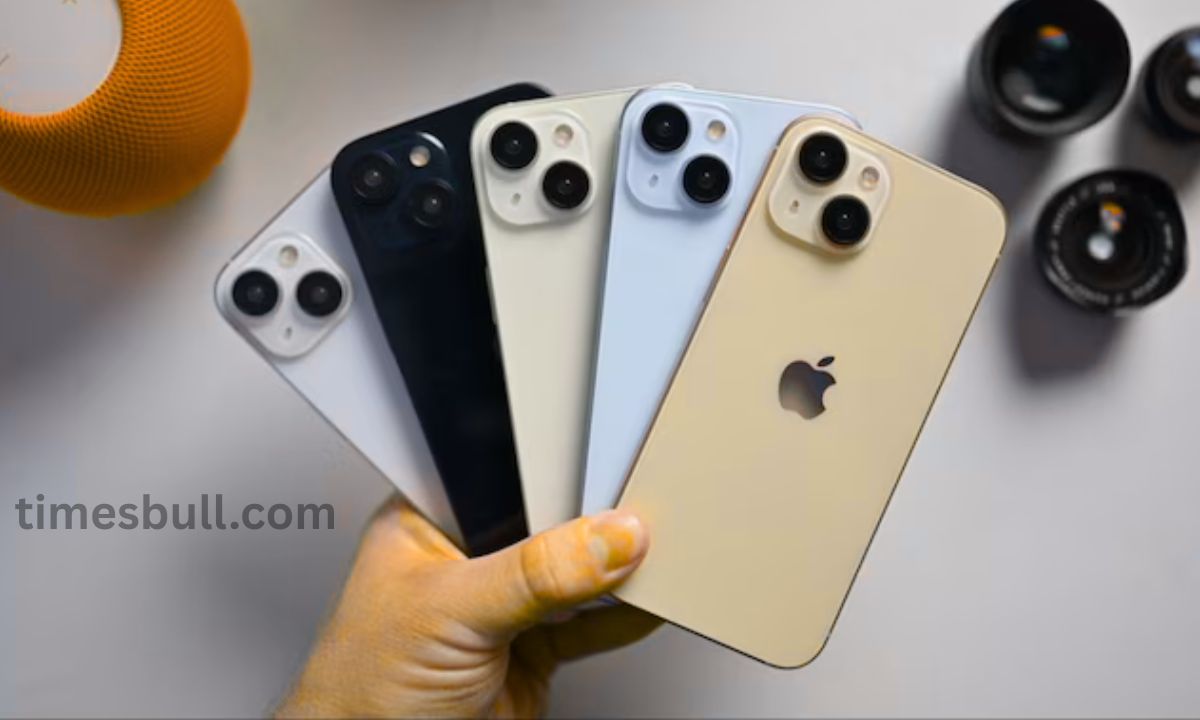
iPhone: If the charge on your iPhone is low or the battery drains fast, you do not have to worry any longer. For better battery backup, use these iPhone settings. Users of iPhones must always have a power bank or charger on hand. This issue affects the majority of iPhone users. You no longer have to be afraid if you use an iPhone and your battery drains easily. Here are several iPhone settings that will help you get more battery life out of your device.
Similarly to Android smartphones, iPhones contain a lot of background-running apps that drain the battery. The phone’s battery runs out fast, and we frequently overlook these apps. Also, the iPhone contains a number of secret options that extend the battery’s life in addition to preventing it from draining.
These methods will be helpful.
Background apps are primarily to blame for basic battery exhaustion. Even when you are not using them, this causes the battery to deplete quickly. You must disable your iPhone’s Background App Refresh feature. Go to Settings to do this. Tap the Background App Refresh option under General, choose the apps, and then disable it. For some apps, you can leave it on. This could extend the battery life of your iPhone.
Set Auto Brightness
You may also save battery life on your iPhone by turning off Motion Effects and Auto-Brightness. The battery of your iPhone is continuously reduced by these features. Therefore, if they are not required, you can turn them off. Navigate to Settings on your iPhone to disable Auto-Brightness. Next, disable Auto-Brightness by selecting Accessibility, then Display & Text Size.
Activate Reduce Motion.
In relation to Motion, you must return to Settings and select Accessibility. After that, tap the Motion option, select Reduce Motion, and activate it. The phone’s battery will last longer as a result of less motion on the screen.
Also, this will preserve battery life.
The Raise to Wake function on the iPhone activates the screen as soon as you pick it up. Battery life can also be preserved by turning off this feature. To disable it, return to Settings, select Display & Brightness, and then select Raise to Wake.