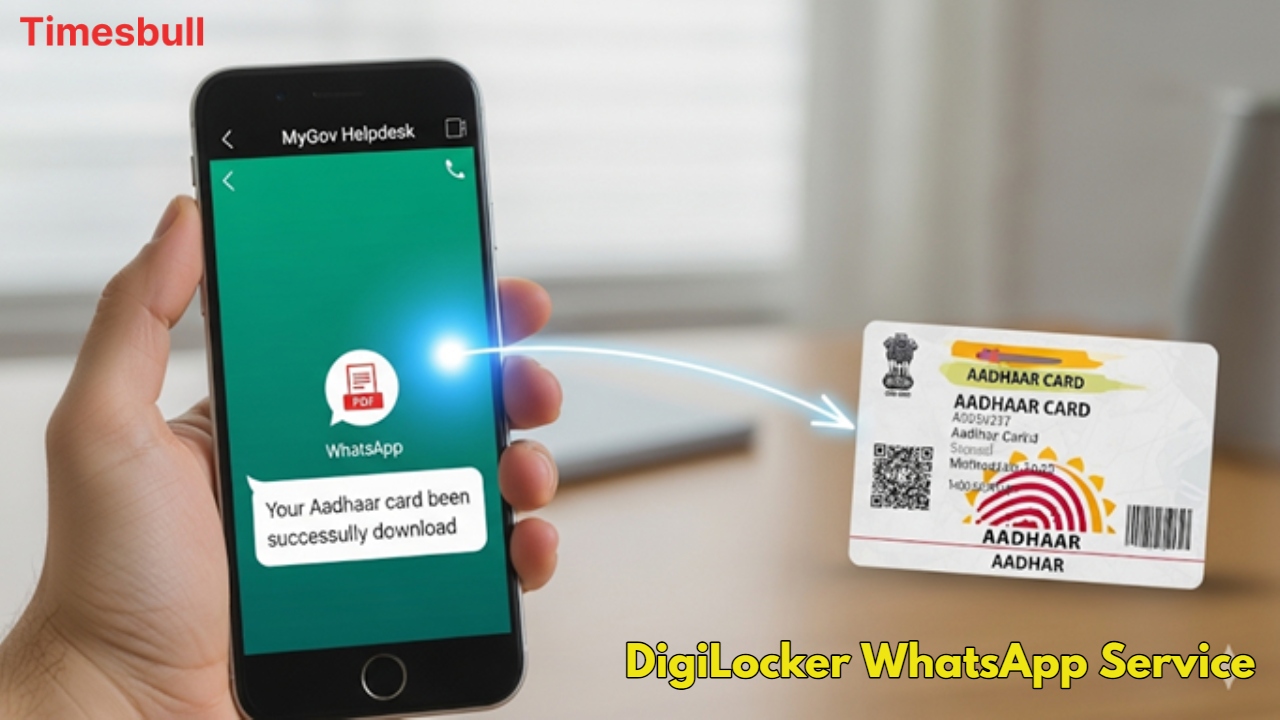
The Aadhaar card is the most widely used document in India today. It’s needed almost every day for one reason or another. Many people don’t always carry their Aadhaar with them. This is crucial news for those: Aadhaar cards can now be downloaded directly from WhatsApp. UIDAI has significantly simplified the process of downloading Aadhaar with this feature.
You no longer need to log in to a website or access an app. All you need to do is save a number on your mobile phone. Then, open WhatsApp and download your Aadhaar in just a few steps. This method is extremely convenient for those who want to keep their Aadhaar safe on their phone. Let’s understand this great process.

An easy way to download an Aadhaar card from WhatsApp
The process of downloading your Aadhaar card from WhatsApp is extremely simple. First, you need to save the UIDAI helpline number 9013151515 on your phone as My Gov Helpdesk. Now open WhatsApp and simply send “Hi” to this number. The chatbot will then show you the DigiLocker option, which you’ll need to click on. If you don’t have a DigiLocker account, create a new one.
Next, enter your 12-digit Aadhaar number here. An OTP will be sent to your registered mobile number, which will need to be verified. After verification, a list of documents available in DigiLocker will open, from which you can select your Aadhaar card and download it directly to your phone. This quick process will prove extremely helpful in an emergency.
Alternative Method to Download Aadhaar from the mAadhaar App

In addition to WhatsApp, you can also easily download your Aadhaar card using the mAadhaar app. To do this, first, install the mAadhaar app from your phone’s Google Play Store or App Store. Once the app opens, select a language and enter your registered mobile number to create your profile.
After OTP verification, log in to the app. Here, you’ll see several Aadhaar-related options, and you’ll need to click Download. Next, enter your 12-digit Aadhaar number, or VID. You’ll receive another OTP on your mobile, which you’ll need to verify.
Once the verification is complete, a PDF of your Aadhaar card will be downloaded to your phone, which you can open by entering your password (the first four letters of your name in capital letters and your year of birth).
Latest News
- PM Kisan Samman Nidhi Yojana: नहीं मिल रही 2000 रुपये की किस्त तो किसान तुरंत करवा लें यह काम

- Aadhaar Card Update Rules – How Many Times Can You Change Address, DOB & Number?

- Train Ticket: How to book a confirmed train ticket without an agent? Learn the Easy Steps

- Indian Railways– 155 Trains Express Declared High-Speed, Thousands of Railway Staff to Benefit

- Monsoon Alert – Warning Heavy to Very Heavy Rain alert & thunderstorms in 22 States Over Next 4 Days

- America-Iran War: मिडिल ईस्ट में तनाव होगा खत्म! ईरान ने होर्मुज रास्ते पर कही बड़ी बात

- PM Surya Ghar Yojana 2026: Get Up to Rs 78,000 Subsidy within 6 Easy Steps, Know Here

- Cheapest Available 5G Smartphones in India Under 10000

- UPSC Prelims Answer Key 2026 – How to Download UPSC Prelims Answer Key at upsc.gov.in

- 8th Pay Commission: एनपीएस और पुरानी पेंशन में कौन सी बेहतर, जानिए बड़ा अपडेट