
Is WhatsApp Web Down? Users Redirected to Facebook Page – How to Fix the Login Error
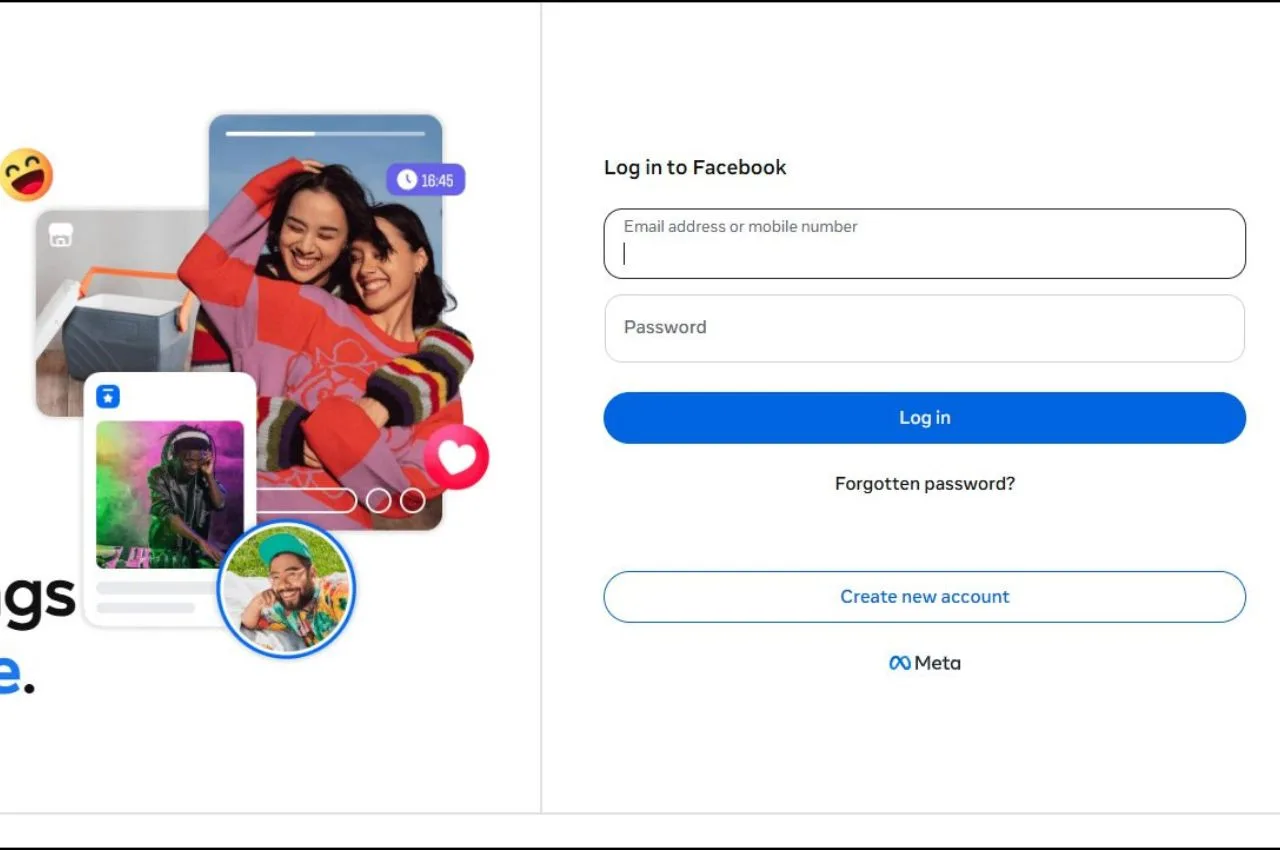
WhatsApp Web Down: WhatsApp Web outage is making people land on the Facebook login screen when they scan their QR code or even use a passkey. It kinda seems like Meta is redirecting folks by mistake, and the whole loop feels odd. Here’s what’s going on with this Meta bug , plus four quick steps you can follow to get unstuck and fix the login loop.

 Join Us
 Add as a preferred
Whatsapp Web Down
A bizarre glitch has kind of hit WhatsApp Web users worldwide, leaving thousands blocked out of their desktop chats and honestly scratching their heads. People trying to reach the browser version are running into this very odd loop, instead of getting into their conversations, scanning the QR code or passkey from their phone suddenly redirects them to the Facebook login page.
This disruption appears to be widespread and it has caused a big surge on Downdetector, with hundreds of reports showing up from users in India, the US, Malaysia, Singapore, and some areas of Europe. Based on outage numbers, nearly half of the impacted users say the problem is specifically tied to the web interface and the device linking process too.
Why Is WhatsApp Web Redirecting to Facebook?
The issue seems really connected to this synchronization error inside Meta’s shared authentication setup, it kind of goes sideways. When people choose the “Linked Devices” option on their phones and then try to verify using biometric passkeys or the QR code scanner, the security token gets misrouted, like not to where it should go.
Since WhatsApp and Facebook run on that same kind of underlying backend network within Meta, a messed up server-side deployment has apparently broken the clean separation between those products. Instead of confirming the secure handshake needed to mirror chats onto the browser, the system ends up treating the authentication token as if it’s a request to access Facebook.
This glitch has caused a lot of frustration across platforms like X (formerly Twitter). Users are expressing serious privacy worries and saying they don’t want their chat history bundled with Facebook data tracking, not even a little. And then the tech jokes started flying around, some folks even jokingly claim that a Meta developer maybe updated the main routing directory, but pointed it at the wrong login destination, casually.

Potential Security Warning and False Alarms
Amid the confusion, a viral post, from concerned users claimed that security software like Kaspersky was detecting data interception attempts during the login process and stuff like that.
However, network analysts have clarified that this is likely a false positive kind of response. Basically security protocols look at a sudden unexpected redirect from web.whatsapp.com to facebook.com, and they treat it as an unauthorized cross-domain jump. So automated browser shields flag it as a potential phishing hook or data interception attempt, even if it’s just Meta internal code misbehaving for a moment.
How to Fix the WhatsApp Web Login Loop
Meta’s core engineering teams are still pushing for a server-side patch to fix the broken authentication routing, like, as we speak. In the meantime, if you’re currently stuck out of your web application, you can try these temporary workarounds that are verified, to help bypass the loop.
1. Avoid Logging Out of Current Active Desktop Sessions
If you already have an open, working WhatsApp Web window on your office computer or laptop, don’t log out. The existing linked sessions that were authenticated before the outage are still, fully functional. If you do log out now, you might end up unable to re-pair the device until the server-side bug is completely resolved.
2. Use the “Link with Phone Number” Alternative
Instead of using your phone camera to scan the QR code or triggering the biometric passkey:
- Go to the WhatsApp Web login screen on your desktop browser.
- Click on “Link with phone number” that sits beneath the big QR code square.
- Enter your registered mobile number to create a unique 8-character alpha numeric code.
Now open WhatsApp on your smartphone, then tap Settings > Linked Devices > Link a Device, and choose the path where you type in the alphanumeric text code manually. This approach is a separate verification route , and it effectively sidesteps the Facebook redirect loop that keeps going around.
3. Clear Browser Site Data and Cookies
Leftover cached files that came from older login sessions can, you know, make the routing loop worse.
- For Google Chrome or Microsoft Edge: tap the tiny lock icon beside web.whatsapp.com in the address bar. Then choose Site Settings (or “Cookies and site data”) and pick Clear data.
- After it’s cleared, press Ctrl + F5 to do a hard refresh on the browser tab, then try linking again using the phone number method, it should help.
4. Turn Off Low Power Mode During Synchronization
Make sure your iPhone or Android device is not currently in some low-power mode , or under a battery saver profile. If you have aggressive power saving set, it can slow down the fast background data exchange that’s needed so biometric tokens can be checked properly during a passkey handshake. Then the server request may end up timing out or it might fall into some default redirect state, like it kind of fails over mid attempt.

Sachin Kumar
Next Article
EPFO Service: Know your PF balance by typing Hello on WhatsApp, Learn the Details
EPFO Service: If you are working and part of the Employees' Provident Fund Organisation (EPFO), you can easily access information regarding your PF balance and claim status via WhatsApp. Just send a message saying 'Hello', and all the details will show up on your smartphone


EPFO Service: If you are working and part of the Employees’ Provident Fund Organisation (EPFO), you can easily access information regarding your PF balance and claim status via WhatsApp. Just send a message saying ‘Hello’, and all the details will show up on your smartphone screen. This service is available 24/7.
To enhance accessibility for its members and streamline services, the EPFO is set to introduce a new feature on the widely-used messaging platform soon. As reported by Business Today, the primary goal of this initiative is to enable subscribers to quickly check their PF balance, review their last five transactions, and monitor their claim status effortlessly.
Write a Comment