


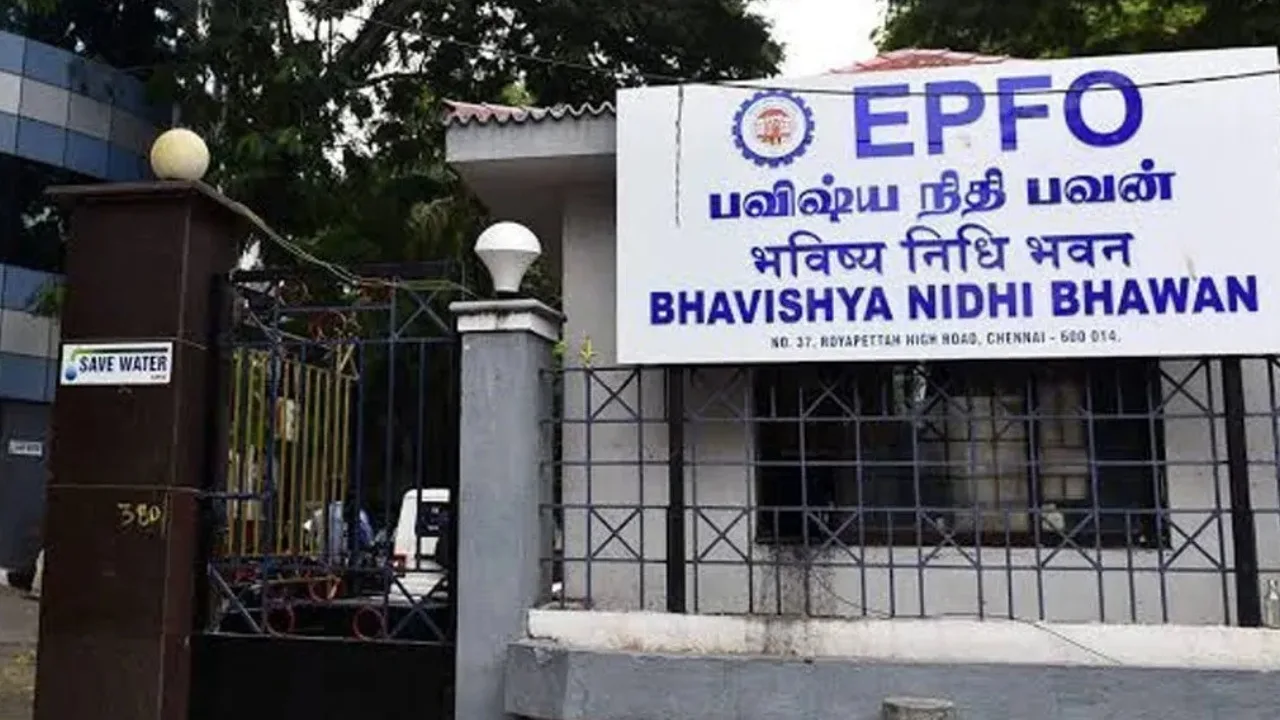
EPFO Guidelines: When you resign from a job, it’s essential to input the “Date of Exit,” which is the accurate date of your departure, to facilitate the transfer of your EPF balance from your previous employer to your new one. It’s common for the previous employer to overlook entering the exit date on the portal, leading to delays in the PF transfer.
However, there’s good news! You no longer need to visit your former employer for this task. The EPFO now allows members to update their exit date online via their UAN portal. Let’s break down the rules and the step-by-step process for making this correction in simple terms.
Familiarize Yourself with These Terms Before Updating Online
According to EPFO regulations, you can manually set the exit date only if:
2 months gap: You must have waited at least 2 months since leaving your job.
Last contribution month: The date you enter should correspond to the month when your previous employer last made a PF contribution.
Active UAN and Aadhaar Link: Your UAN number must be active and linked to your Aadhaar.
Mobile Number: Your mobile number should be linked to your Aadhaar card, as an OTP will be sent to it.
Step-by-Step Guide: How to Update ‘Date of Exit’?
If you satisfy all the above criteria, follow these straightforward steps:
Login to the portal: First, visit the Member Unified Portal of EPFO and log in using your UAN, password, and captcha.
Select the Mark Exit option: Click on the Manage tab in the top menu and choose the Mark Exit option from the dropdown list.
Select Company: Choose the Member ID of your previous employer for which you need to update the exit date.
Enter the date and reason: Input the correct date of your job departure and the valid reason for leaving. Ensure that the date aligns with your salary slip or relieving letter.
Click on Request OTP: After verifying all the details, check the consent box and click on Get OTP.
Verify and submit: Enter the OTP received on your Aadhaar-linked mobile number and submit. Your ‘Date of Exit’ will be updated immediately.
How to re-check service history
After the process is complete, to make sure the date was entered correctly:
Go to View in the main menu and click on Service History.
There, the Date of Exit will be visible in front of the name of your old company.
What if the date is already entered incorrectly?
If your former company has already entered an incorrect date of exit, the online system does not allow you to change it directly. In such cases, you will need to contact your former company with your salary slip and relieving letter or file a complaint through the EPFO Grievance Portal (EPFiGMS).
Important safety warning
EPFO advises its members never to share their UAN password, Aadhaar details, or bank account information with any unknown person or fraudulent caller. EPFO never solicits money for any service.