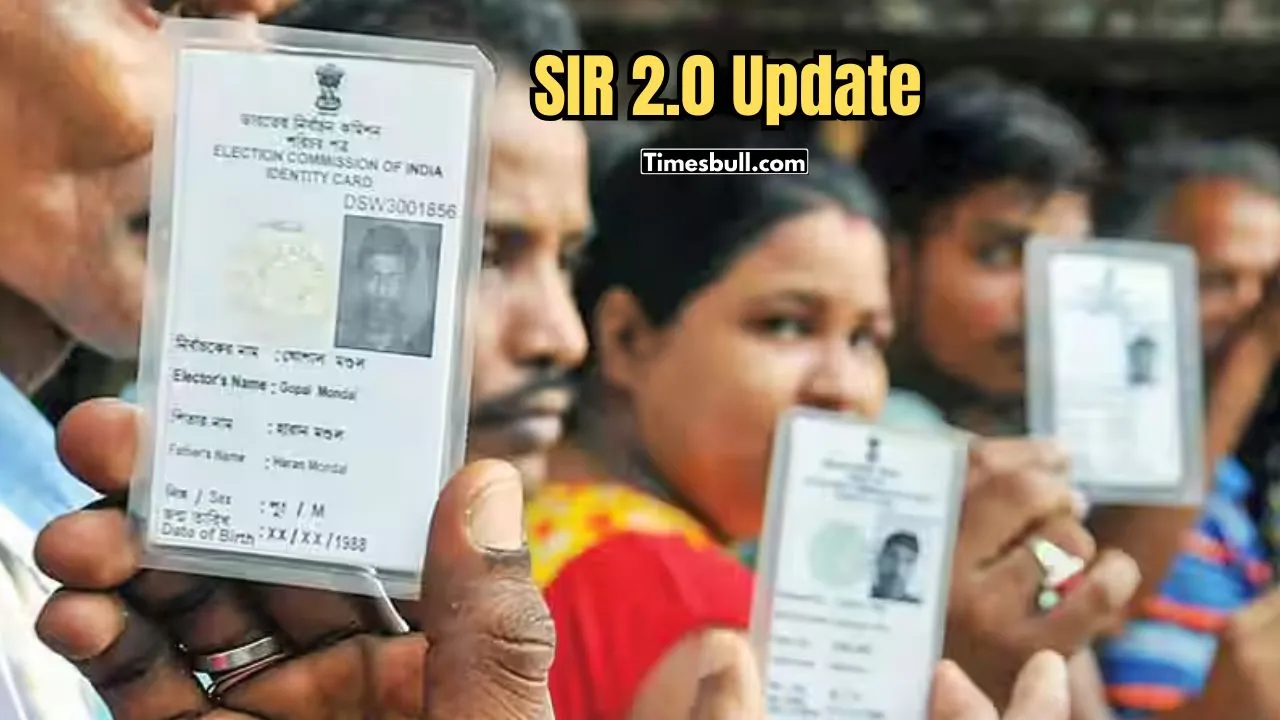
The much-awaited draft voter list of SIR has been published. You can easily check by clicking on the website whether your name is in the electoral roll or not. However, many people’s names have been omitted from the list. The Election Commission has also published the list of those who are not in the list, who are in the exclusion list. How to view that list?
To find out, is your name in the exclusion list? You have to click on this link ceowestbengal.wb.gov.in/asd_sir. The list of excluded voters is available here. By clicking on the website, you can get the list of cancelled voters.
Also Read –HDFC Bank Gives Shock to Customers, Cuts FD Interest Rates – Check New Rates
How to view it?
There are 3 options. First, you can search by EPIC number. Second, you have to search by assembly constituency and part number. The list of cancelled voters can be downloaded according to each booth. Third, the list of cancelled voters prepared by BLO/BLA can also be viewed by searching by assembly constituency and polling booth part number.
Why and whose names have been left out?
A. The names of those who did not submit the enumeration form by December 4 have been left out of the published draft list.
b. The names of deceased voters have also been left out of this draft list.
c. The names of those whose enumeration form was not found at any address when it reached their homes, and whose forms could not be given, are not in the draft list.
D. The names of voters with double entries have also been left out. That is, if the name of the same voter is found in two booths or two centers, their names have been left out of the list.
Read More –SIR Voter List – How to Find Your Name Online, Know Latest Step-by-Step Guide
How to search for a name online?
1. First, you have to enter the eci.gov.in website.
2. On the top right of the website, there is an option ‘Search Your Name In E-Roll’ written in white on pink. Click there.
3. Another page will open. At the top, it will be written ‘Search In Electoral Roll’. Below are 3 options – Search by Epic Number, Search by Personal Information and Search by Mobile Number.
4. If you select the first option, you will have to enter the EPIC number of the voter card. Before that, you must select the specific state and language.
5. Then, after checking the captcha code, click on the search option and your name will appear.
6. When you conduct a search using personal information, select your state and preferred language, then provide your full name, date of birth, a relative’s name (as written on your birth certificate), gender, district, assembly constituency from the provided options. A name will only appear after entering the captcha text correctly and pressing Search.
7. When you choose the third option for doing your search, you must first select your state and language and then provide both your mobile telephone number and the captcha text provided on the form. Once you’ve submitted this form with your mobile number, an OTP will be sent via SMS to your registered cell phone number. You will need to enter this OTP into the search page after pressing Search before your name shows up.
Latest News
- Bank Holiday Alert: अगले सप्ताह कितने दिन बंद रहेंगे बैंक? जाने से पहले चेक करें लिस्ट

- PAN Card–From Banking to Property Deals, Major PAN rules changed
- New Triumph Street Triple 765 RX Is Here – Limited Edition Track Monster Unveiled

- Best Budget Tablets for Students 2026 Under 20,000

- Free Bus Travel for Women Starts June 1, Know ID Rules and Many More

- How to Replace Siri with ChatGPT on iPhone: Step-by-Step iOS Setup

- Petrol-Diesel Price Today: 24 मई को कितना बदला पेट्रोल-डीजल का भाव, चेक करें 1 लीटर की कीमत

- White House Firing: व्हाइट हाउस के दरवाजे पर 25 राउंड फायरिंग से मची खलबली, संदिग्ध हमलावर की मौत

- Tata Tiago Facelift Launching Soon – Aggressive Design And High-Tech Cabin Revealed

- LPG Gas Connection Transfer Made Easy, Learn the Complete Process