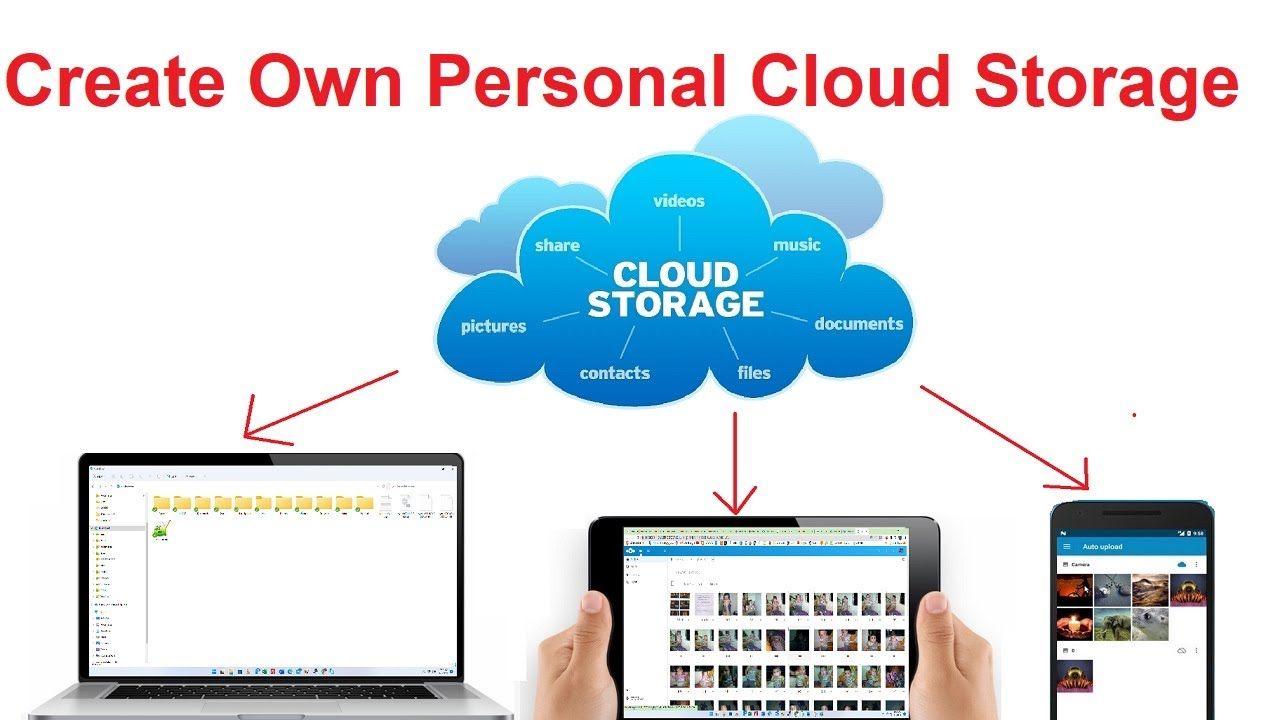
DIY home cloud storage: It seems pretty sensible to create cloud storage at home when you want privacy, full control, and easy file access across devices. That does sound technical, but once you understand how things work, it is a fun little weekend project. With just a basic router and an old hard drive, along with a few tweaks inside browser settings, you can have yourself a personal storage hub that works within your Wi-Fi network.
Prepare Your Hard Drive
To begin with, connect any old hard drive to your computer. Format it so that space is cleared out and smooth partitions can be created for reliable storage. If the drive uses older connectors instead of USB, it may require some sort of external adapter. Older drives might also need to have their own power source; keep that in mind when setting everything up.
Connect Hard Drive to Router
After the preparation of the drive, plug it directly into the USB port of your router. Some people use a USB hub when they want to attach more than one drive. Afterwards, power on your router and the hard drive. Your router should detect the storage once it finishes booting up.
Configure Router Settings to Share
The next step is to access the admin panel of your router. You can search for its IP address in network settings or, in case of Windows, type “ipconfig” in the command prompt. Then, just open that address in your browser to open the settings of your router. Log in with your admin username and password. Search for sections like “USB Settings,” “Advanced Storage,” or something similar. Enable options like file sharing, USB sharing, or access to the media server. Set up a secure username and password for the shared folder so no unwanted user gets access.
Access Storage From Different Devices
Once sharing is activated, your storage will become visible across your home network. On a Windows system, open File Explorer and check under “Network” for your router name. You can also manually map network drives. On smartphones, tablets, smart TVs, or consoles, use file explorer apps or media players supporting network browsing. Even FTP apps like FileZilla can connect to your drive through your router’s IP.
Optional: Use it outside the home network
If you want access from outside your home, enable remote access on the settings page of your router. You may also want to consider setting up port forwarding on the modem and then enabling Dynamic DNS to handle any changing public IPs. This step allows you to reach your home cloud from anywhere, but always choose secure passwords for safety.
Conclusion
Setting up a home cloud promises freedom, control, and convenience with no charges for monthly subscriptions. With just a simple router and an unused hard drive, you will be able to create storage that works privately inside your home, and even outside it if needed. Once you complete the setup, it turns out to be a reliable space for photos, movies, backups, and important files.