


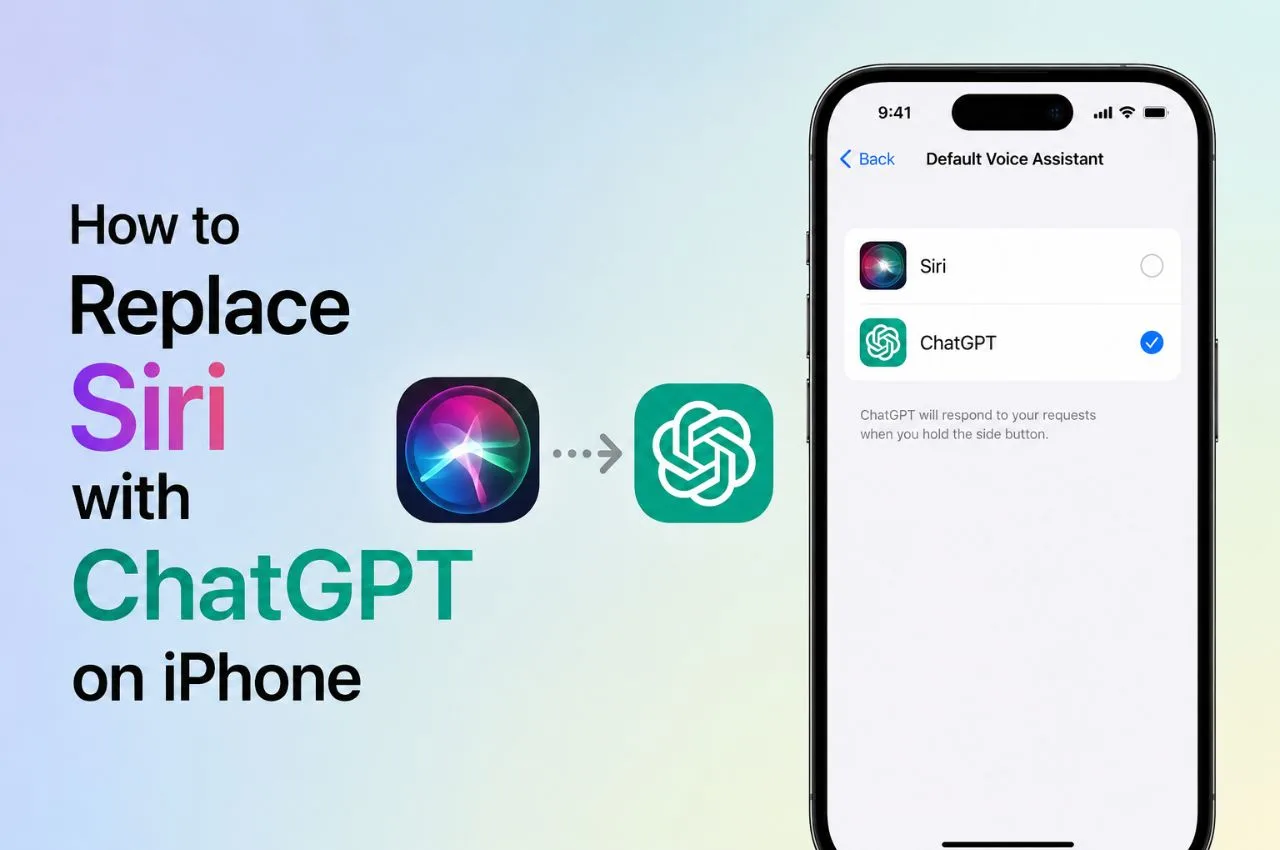
While Apple continues to build out its native Apple Intelligence ecosystem, plenty of power users still end up wanting that deeper, more unrestricted conversational kind of depth that feels like OpenAI’s ChatGPT. And sure, you can’t entirely erase Siri from the iOS core, but you can bypass it completely. Like, not really the same thing at all, but close enough for most folks.
Getting a smooth ChatGPT alternative running on your iPhone, typically takes under five minutes. In this walkthrough, we look at the two most efficient options for mapping the official ChatGPT voice assistant straight to physical gestures on your device, with as little fuss as possible.
Prerequisites Before Setup
Before you set anything up, you should meet a couple of simple software things, so the automations work right. First, make sure you download and sign in to the official ChatGPT app, the one from the Apple App Store. After that, confirm your iPhone is running iOS 18 or newer, because that’s what unlocks more advanced system control mappings. Then open the ChatGPT app at least one time, and approve the microphone permissions too, so the audio recording stays smooth, hands free really.
Method 1: Remapping the Action Button
If you have an iPhone Pro model with the physical Action Button, you can set it up so it works like a hardware trigger for the AI assistant. Start by going into the iOS Settings app, and find the pane for Action Button configuration.
Once you’re there, swipe left and right across the visual wheel thing until you see the Controls option. Tap the selection window right under it, then look in the control library for ChatGPT, and pick the option called Open ChatGPT Voice. After you confirm, you can do a long press on that physical button and the phone should wake up straight into a responsive, cloud based voice session with ChatGPT, kind of skipping the usual assistant interface altogether.
Method 2: The Control Center Integration
For devices without a dedicated Action Button, or for people who kinda like on-screen shortcuts instead, iOS 18 has a pretty solid alternative through the redesigned Control Center. Just pull down from the top-right corner of your display to show the controls grid, then hit the plus icon in the top-left area to get into editing mode .
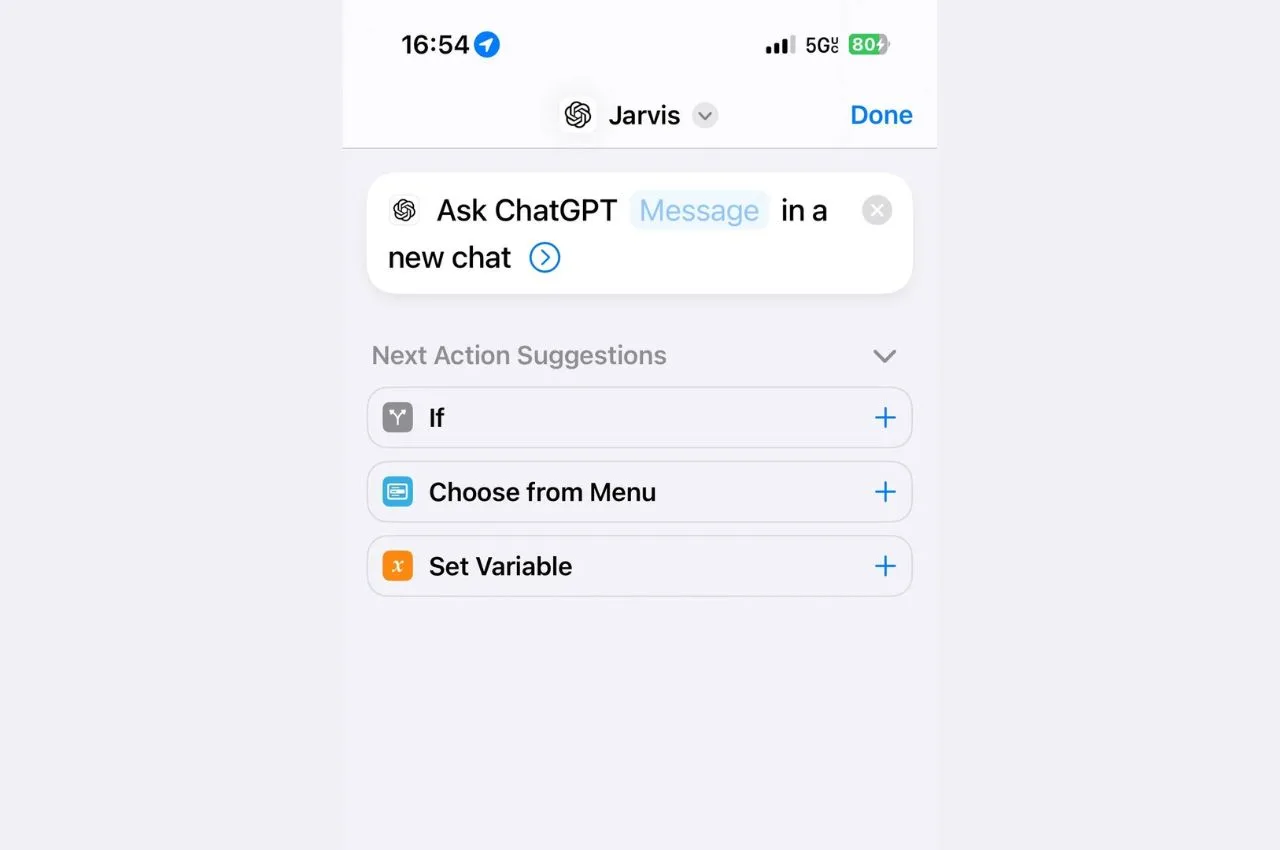
Tap the “Add a Control” button near the bottom of the screen , scroll down to the Shortcuts section, and choose the Shortcut Control Tile. After the tile lands on your grid, tap it once to open your shortcut library and assign the custom action that launches ChatGPT Voice. What you get is basically a dedicated, one-tap launch tile sitting right inside your system menu so you can jump into advanced voice modes from pretty much anywhere.
Technical Functionality Overview
The structural gap between native Siri and a mapped ChatGPT interface is honestly pretty big . Siri keeps direct access to system-level functions , so it can flip Wi‑Fi, open local applications, and handle alarms or similar tasks. ChatGPT is restricted from managing device settings at that level, because strict iOS security sandboxing prevents it, so it ends up operating as an informational and creative layer instead.
Still, ChatGPT wins hard for contextual intelligence. While Siri can manage simpler requests and uses short-term thread memory, ChatGPT maintains complex context across huge multi-turn conversation logs. Siri tends to lean on basic information panels pulled from standard search engine results pages, whereas ChatGPT performs real-time, synthesized web research to deliver more detailed responses . Using Siri for on-device management, and then your hardware buttons for ChatGPT is a pretty strong hybrid setup overall.