
Times BullTimes BullTimes Bull
  • Auto
  • Business
  • Education
  • Entertainment
  • Gadgets
  • India
Times BullTimes Bull
  • Business
  • Gadgets
  • Auto
  • Astrology
  • India
  • Entertainment
  • Sports
  • Hindi News
  • Automobile
  • Biz
  • Bharat
  • Astro
  • Cricket
  • Entertain
  • Food
  • Career
  • Health
  • jobs
  • Education
  • lifestyle
  • Recipes
  • State
  • World
  • Delhi
  • Uttar Pradesh
  • Madhya Pradesh
  • Rajasthan
  • Bihar
  • Haryana
  • Chhattisgarh
  • Himachal Pradesh
  • Jammu & Kashmir
  • Maharashtra
  • Jharkhand
Search
  • Business
  • Gadgets
  • Auto
  • Astrology
  • India
  • Entertainment
  • Sports
  • Hindi News
  • Automobile
  • Biz
  • Bharat
  • Astro
  • Cricket
  • Entertain
  • Food
  • Career
  • Health
  • jobs
  • Education
  • lifestyle
  • Recipes
  • State
  • World
  • Delhi
  • Uttar Pradesh
  • Madhya Pradesh
  • Rajasthan
  • Bihar
  • Haryana
  • Chhattisgarh
  • Himachal Pradesh
  • Jammu & Kashmir
  • Maharashtra
  • Jharkhand
Follow US
  • Privacy Policy
  • About US
  • Trademark
  • Editorial policy
  • Advertisement With Us
  • Authors
  • Contact us
  • Correction Policy
  • Disclaimer
  • DNPA Code of Ethics
  • Live Blog
  • Write For Us
Education

How to use Gmail – A Step-by-Step Tutorial for Beginners

Arvind Kumar Tiwari
Last updated: September 7, 2024 6:59 am
By Arvind Kumar Tiwari
Share
4 Min Read
Gmail
Gmail

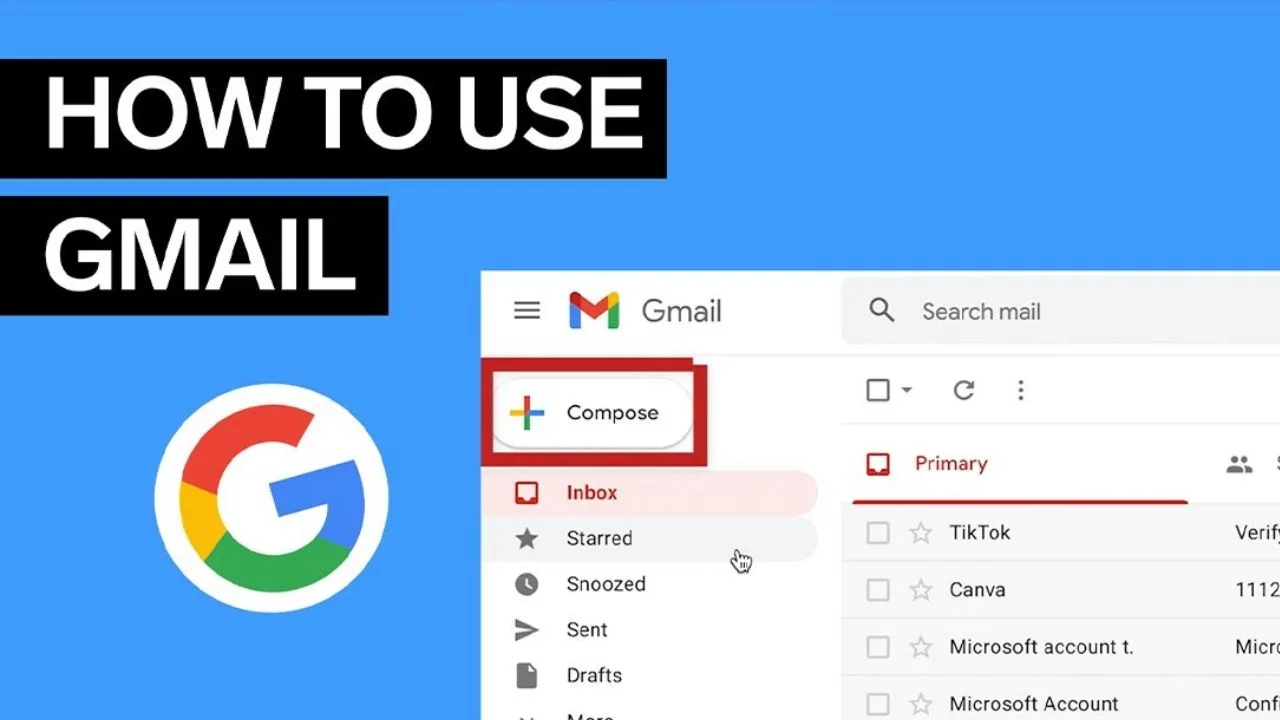
Gmail is a very popular email service that offers a user-friendly interface. Once signed in, you can compose and send emails, organize your inbox, and manage your settings.

Contents
  • Create a Gmail account
  • Sign in to Gmail
  • Sending on Email
  • You can add multiple recipients by typing in the new message
  • Replying to Emails
  • Creating and using labels
  • Signing Out

Create a Gmail account

• Go to the Gmail website and open your web browser.
• On the Gmail sign-in page, you will find an option to create a new account.
• Type your first and last name, choose a username, and create a password. Gmail will ask you to retype the password.
• Enter your mobile number and a recovery email address, your birth date, and gender.
• Follow Google’s Terms and Privacy Policy.
• Google will send you a verification code on your number. Enter the code and confirm.
• Follow any additional prompts to finalize your account setup.

Sign in to Gmail

• Once your Gmail account is created, you will need to sign in to Gmail. com
• Type in your Gmail address and password then click Sign in

Sending on Email

• Click the Compose button which is located on the left side of your Gmail interface
• Enter the recipient’s email address in the new message and it will be easy to do.

You can add multiple recipients by typing in the new message

• Enter your email subject in the Subject field
• Enter your email content below the subject
• To add attachments, click on the paperclip icon at the bottom of the email window and then select Get file from the computer
• If everything is ready, click the Send button

Replying to Emails

• Click on the email you want to reply to
• When you open the email, click on the Reply button
• Write your reply in the text area
• After writing your reply, click Send
• Searching for Emails
• Top of the Gmail, search for what you are looking for
• You can search Operators can also do this by
Creating and using labels

• Labels is a folder in Gmail. When you assign a label to an email, the email is added to the Labels folder in the left-hand menu.
• Click Settings at the top right of the page, then click See All Settings.
• If you haven’t created any labels yet, it will appear empty.
• Create a New Label at the top of the Labels.
• Type the name you want for the label.
• Create Label Then
• You can also create a new label in the drop-down menu by clicking Create New and entering the label’s name.

Signing Out

• When you’re done using Gmail, it’s important to sign out, especially on shared computers.
• This is located in the top right corner of the screen.
• Click this option to log out of your Gmail account.

TAGGED:gmail accountgmail emailgmail labels how to usegmail tipsgmail tips and trickshow to create gmail labelshow to use dots in emailshow to use filters in gmailhow to use gmaihow to use gmail filterhow to use gmail offline mode
Share This Article
Facebook Copy Link Print
Share
What do you think?
Love0
Sad0
Happy0
Angry0
Surprise0
Wink0

You Might Also Like

cbse 12th result 2026
Education

Check CBSE 12th Result from DigiLocker! Know the Method

9 minutes ago
Education

UP Board Compartment Exam 2026 – How to Apply at upmsp.edu.in, Check Here Latest Update

11 hours ago
Education

How to Check CBSE Class 12 Result 2026 – Steps to Download Marksheet via Roll Number & DigiLocker

15 hours ago
Education

Haryana Board Result 2026 – BSEH Results Expected in Second Week of May; How to Check Result Roll Number, SMS

17 hours ago
  • Privacy Policy
  • About US
  • Trademark
  • Editorial policy
  • Advertisement With Us
  • Authors
  • Contact us
  • Correction Policy
  • Disclaimer
  • DNPA Code of Ethics
  • Live Blog
  • Write For Us
Welcome Back!

Sign in to your account

Username or Email Address
Password

Lost your password?